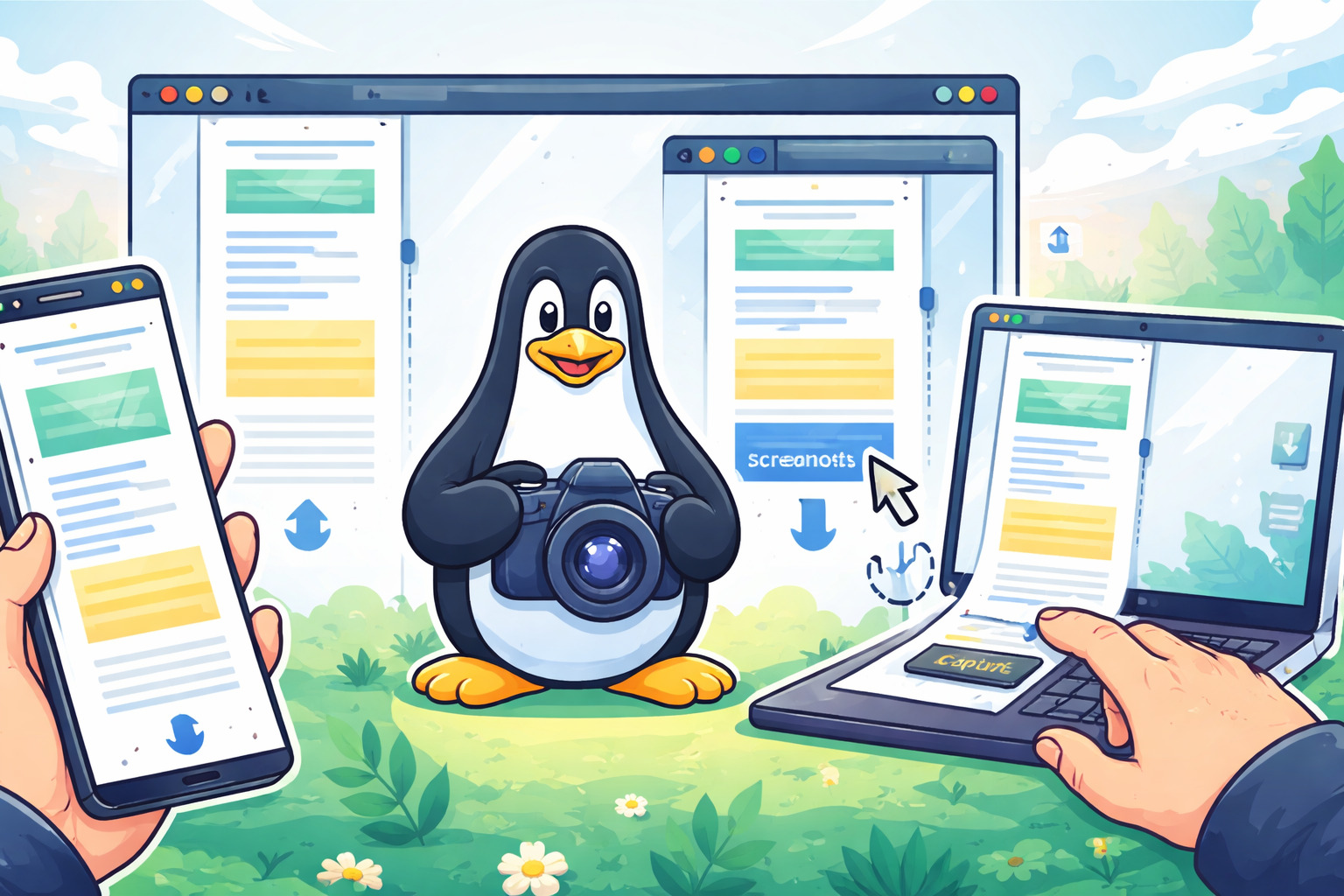
In the past few years, I have been a heavy user of screenshot tools for both screenshot taking and annotation. At work, I have been using ShareX on Windows and Shottr on Mac. Personnally on Linux, I have been switching between a few: Shutter and Ksnip on Ubuntu / Mint and native + Satty on Omarchy. One feature that I am deeply lacking on Linux is the possibility to take scrolling screenshots.
Enter Claude! I have a lot of knowledge on scripting and web development but I have 0 experience with software development on Linux. So I did what every one is doing nowadays and launched Claude to prompt for creating a tool that would handle scrolling screenshots on Wayland / Hyprland.
The idea seemed simple enough: select a zone on the screen, take screenshot, scroll down, take screenshot, repeat until the end of the page is reached and then stitched things together so that it is merged in one single image.
The reality proved to be much more prompting and back and forth than expecting. There are several stitching algorithms / strategies that are more or less intensive in terms of computing but also more or less accurate in identifying the overlaps between the frames. I settled for a slower but more accurate strategy and it’s been working quite well for my use cases so far.
The code is available on github and been pushed to the Aur repository so that it can be easily installed on Arch and other Arch-based distros.
Omarchy is already having a few options to capture the screen: screenshot, screenrecord or a simple color picker. I wanted to expand the options with a scrolling screenshot based on the tool created above. I ended (once more using Claude) with a ~/.local/bin/omarchy-cmd-scrollshot file connected to a specific key binding (Ctrl + Print). Since the stitching might be time consuming, there is here some kind of notification feedback provided to the user in case it takes more than a second.
1
2
3
4
5
6
7
8
9
10
11
12
13
14
15
16
17
18
19
20
21
22
23
24
25
26
27
28
29
30
31
32
33
34
35
36
37
38
39
40
41
42
43
44
45
46
47
48
49
#!/bin/bash
# Take a scrolling screenshot of a selected region.
# Saves to ~/Pictures by default, but that can be changed via OMARCHY_SCREENSHOT_DIR or XDG_PICTURES_DIR ENVs.
SCROLLSHOT=scrollshot
[[ -f ~/.config/user-dirs.dirs ]] && source ~/.config/user-dirs.dirs
OUTPUT_DIR="${OMARCHY_SCREENSHOT_DIR:-${XDG_PICTURES_DIR:-$HOME/Pictures}}"
if [[ ! -d $OUTPUT_DIR ]]; then
notify-send "Screenshot directory does not exist: $OUTPUT_DIR" -u critical -t 3000
exit 1
fi
SCREENSHOT_EDITOR="${OMARCHY_SCREENSHOT_EDITOR:-satty}"
open_editor() {
local filepath="$1"
if [[ $SCREENSHOT_EDITOR == "satty" ]]; then
satty --filename "$filepath" \
--output-filename "$filepath" \
--actions-on-enter save-to-clipboard \
--save-after-copy \
--copy-command 'wl-copy'
else
$SCREENSHOT_EDITOR "$filepath"
fi
}
FILENAME="scrollshot-$(date +'%Y-%m-%d_%H-%M-%S').png"
FILEPATH="$OUTPUT_DIR/$FILENAME"
FRAMES_DIR=$(mktemp -d)
$SCROLLSHOT --capture-only "$FRAMES_DIR" || { rm -rf "$FRAMES_DIR"; exit 1; }
(sleep 1 && notify-send "Scrolling screenshot captured" "Stitching frames, this may take a moment…" -t 10000) &
STITCH_NOTIFY_PID=$!
$SCROLLSHOT -i "$FRAMES_DIR" --cleanup -o "$FILEPATH" || { kill $STITCH_NOTIFY_PID 2>/dev/null; exit 1; }
kill $STITCH_NOTIFY_PID 2>/dev/null
wl-copy <"$FILEPATH"
(
ACTION=$(notify-send "Scrolling screenshot saved to clipboard and file" "Edit with Super + Alt + , (or click this)" -t 10000 -i "$FILEPATH" -A "default=edit")
[[ $ACTION == "default" ]] && open_editor "$FILEPATH"
) &
And the additional line added to ~/.config/hypr/bindings.conf to assign the keyboard shortcut:
1
bindd = CTRL, PRINT, Scrolling screenshot, exec, ~/.local/bin/omarchy-cmd-scrollshot
I haven’t been using it long enough to cover all possible scenarios but I’ll make sure to update if and when needed.
For the time being, comments are managed by Disqus, a third-party library. I will eventually replace it with another solution, but the timeline is unclear. Considering the amount of data being loaded, if you would like to view comments or post a comment, click on the button below. For more information about why you see this button, take a look at the following article.