Using the method described in my previous article,
you can easily see the benefit to bypass censorship. By using the set up
previously described, you can encrypt all your traffic through the proxy
and therefore appear as if you are only having one long SSH connection.
But in addition, it can be a good idea to configure Firefox to use the
proxy to resolve the DNS requests (in case the DNS server you are using
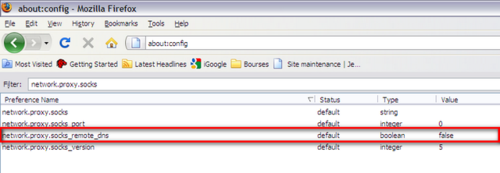
are “filtered”). To do so, type “about:config” in the adress bar and
change the setting of network.proxy.socks_remote_dns from false to
true as shown below.
If you enjoy Pandora or any content that is
restricted to the USA, it is quite annoying when you cannot access it
because you are out of the country (Ha! Good old Europe).
Fortunately, proxies can help you fix the problem quite easily. I used
to employ GPass. It is an easy
solution to use under Windows but last time I tried to start it, it
couldn’t find any tunnel. There is however an alternative solution to
put in place if you have a web host in the USA with SSH connection:
create your own proxy tunnel.
The process is simple:
- Create a SSH tunnel
- Configure your web browser to use the tunnel.
Read more...
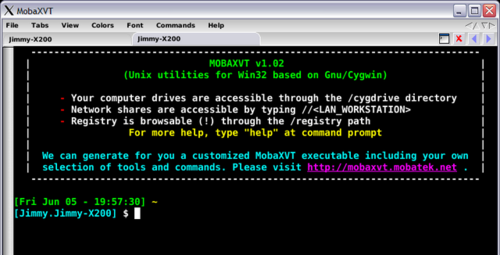
While looking for an easy (and immediate) way to get an SSH console to
windows, I found MobaXVT. It is describe as a “Free portable X server
with Unix/Cygwin utilities”. As the description suggest, it is actually
a Cygwin encapsulation into a nice multi-tab interface that has a
built-in (among other things that I didn’t test) SSH client. Anyway, if
you are just looking to have an SSH client under Windows, this is a
great solution if you are allergic to the Cygwin installation. This is
available for free download at http://mobaxvt.mobatek.net/en/.
Following the article where I explain
how to install a SSH server on the Lacie Edmini,
I will explain how to allow authentication through the use of private /
public key so that you can use the method explained in
another article
to backup your files on your local server.
During the installation of the SSH server,
we didn’t touch anything in the SSH configuration files. The result was
that you could login with the root user you created during the process.
The first thing I want to do is to allow a normal user to use ssh. Doing
so is easy. Just open the /etc/passwd file and modify the line with
the user you want to allow so that it finishes by /bin/bash or
/bin/sh depending on the shell you prefer. Finally, a user allowed to
connect with ssh will have a line look like:
Read more...
In a previous post,
I explained how to make automatic backup on a server using SSH. I was
suggesting that the server was somewhere on the Internet so we didn’t
have to deal with any SSH installation. However, sometimes some data are
to sensible to be stocked somewhere on the Internet so a good idea is to
have your own little server running SSH. In addition, once data are
backed up on your local server you can decide (automatically) which one
of them can be send on a distant server.
I have a Lacie Edmini V2 (ethernet gigabit disk). It is a nice little
network hard drive coming with a Linux OS. It already has a HTTP and FTP
server but unfortunately, no SSH or rsync. Therefore, before being able
to use the backup scripts
we have to install these two services. Fortunately for us, some good
work has already be done by some people. But unfortunately, I’m not as
good with Linux as these guys are so everything they said was not always
really clear. That is mainly the reason why I will try to create a guide
that will be a little bit more explicit. I still assume however that you
have some basic Linux knowledge.
Read more...
Some time ago, I was explaining how to
backup your important files
using rsync and ssh. This solution allowed to transfer some content to
your server in a secure way. Of course, I was using this solution
myself, but I got some problems while using it due to SSH limitations
with my webhost (webhostingbuzz).
Indeed, after 30 minutes of connection, the SSH session was killed and
therefore rsync that was using it got frozen.
After some researches on this Internet, I found some options to give to
the SSH command to maintain a connection open with the server. Different
solutions exist:
Read more...
If you are using a shared webhosting like I do, it can be interesting to
know which websites are located on the same server. Indeed, if you find
your site too slow, it may be because another website is consuming too
much resources. There can as well be some problems if you are sharing
your IP address with some site that are censored abroad. Indeed, if one
of the site of the server is blocked, the IP is probably blocked so you
will not be able to access your own site even though there is nothing to
censor in it. And you will not be able to access your own proxy server.
So here are two interesting links to find it out, but be aware that a
few hundred websites can be located on the same server:
- My IP neighbors
- You get signal
If you have many important files on your computer, you probably save
them somewhere, from time to time: usb key, CD, server… the choice is
yours. But the problem is to maintain this backup up-to-date. So what
about making a backup à la “time-machine” to save your files on a
regular basis and be able to access previous versions or the latest one
easily. We will realize a backup of the files of the computer to our web
hosting / server.
For that, we’ll use the linux tools rsync and SSH. This tools are
usually built-in in Linux distributions or you can easily install them
otherwise with your favorite packet manager. Under Windows, that’s
another story but nothing is completely lost. I will begin to describe
how-to install the tools under Windows (sometimes you just don’t have
the choice of your OS) and then describe the backup procedure. The
procedure applies for both linux and windows.
I make here the assumption that you have an ssh access to your distant
server. This will allow you to have an encrypted connection between your
computer and the server and and therefore will prevent anyone to
intercept your backups when you send them.
Read more...
I am sure that you have already seen some dialog like that:
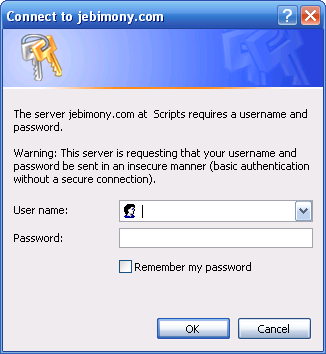
This kind of dialog appears when a folder is protected on an Apache
server. It allows some files to be accessible to a limited amount of
people with special rights. This kind of protection is done by a little
file: .htaccess put in the directory containing the content to
protect.
Read more...
I guess that you have already been in a situation where you couldn’t
access some websites whether you are at school, work, library, or in
some country that practices censure.
There are many
proxies
(thanks
Korben
for the info) that you can use to bypass these limitations but they can
be slow and / or with a lot of ads and pop-up windows. But if you have
your own web hosting, there is an easy way to avoid these drawbacks:
install your own proxy. In order to do so, you simply need:
- A web hosting that allows you to execute cgi scripts.
- The CGIProxy
script
written by James Marshall, available
here.
Read more...